
Recording health warnings
What the banners during a live recording mean — and which ones need action from you.
Most warnings during a live recording resolve themselves — the recording keeps running while deliberAIde reconnects in the background. A banner above the recording controls tells you what is happening and disappears once the problem is gone. Usually only microphone problems, and a phone whose screen locked or that left the recording page, need action from you.
The banner says the connection was lost. You'll see "Connection lost — trying to reconnect. Your recording will resume automatically as soon as the connection is back." Keep the page open and don't stop the recording. If the banner stays for more than a minute, check your internet connection. It's resolved when the banner disappears and new text arrives in the live transcript.
The banner says your microphone captures no audio. "No audio is being captured from your microphone." — this one needs you: check that the browser still has microphone permission and the right microphone is selected, or reload the page. Then say a sentence; if it shows up in the transcript, capture works again.
The banner says audio isn't reaching the server. "Audio has stopped reaching the server. Check your microphone and network connection." Work through both causes above: microphone first, then network.
The banner says transcription has paused. "Transcription has paused. The server is attempting to recover automatically." Your audio is still being captured, so nothing is lost — no action needed. The same applies to "Audio is flowing; transcription is catching up."
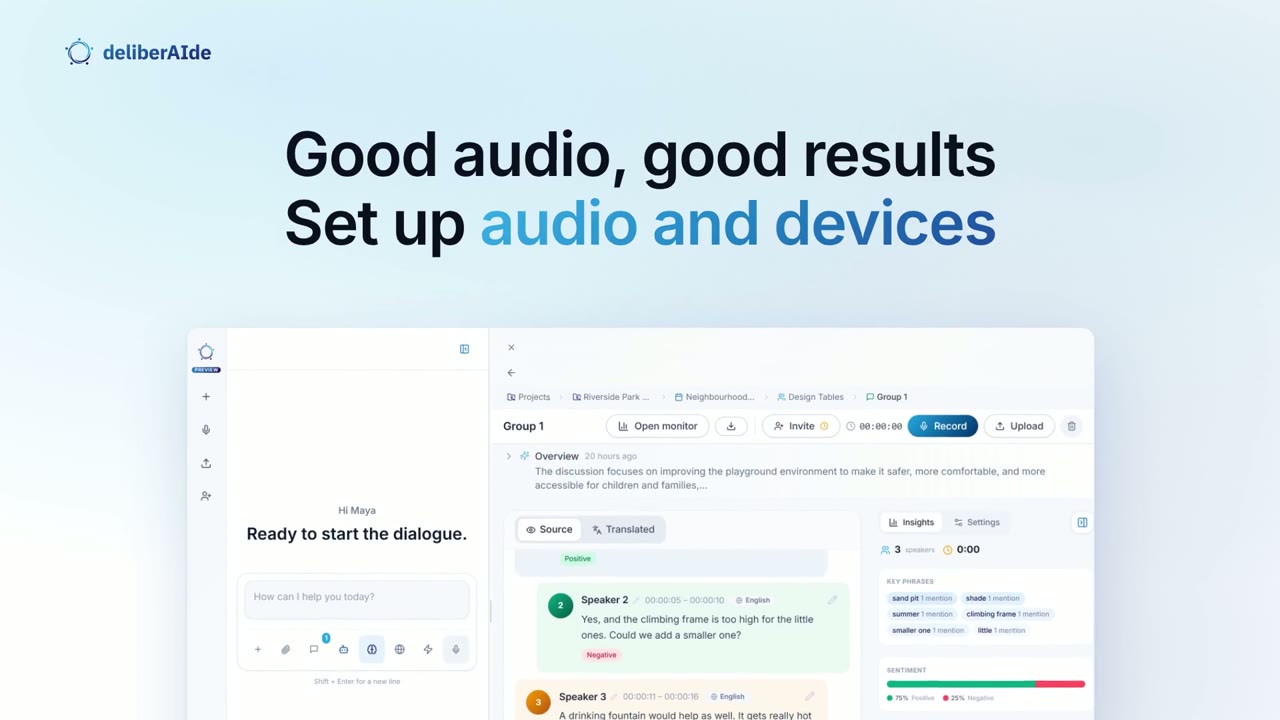
The banner says a recording device has stopped sending audio. "A recording device has stopped sending audio, most likely because its screen is locked. Ask them to unlock it and return to the recording page." You see this on the discussion page when a phone that records there, often through an invite link, goes quiet. Ask the person at that table to unlock the phone and go back to the recording page. Then check its screen lock, low power mode and Do Not Disturb settings, as described in Audio and device setup. Or watch the video lesson Set up audio and devices.
The banner says no speech has been recognised. "No speech recognised for …" If people are talking, the microphone of the recording device can't hear them. Take off any headphones, play a video call through the loudspeakers, and check that the right microphone is selected.
The banner says audio is missing from while the page was in the background. "About … of audio is missing from while this page was in the background." The recording is running again, but the missing stretch can't be recovered. It happens when a phone's screen goes dark or someone switches to another app. On a phone or tablet, keep the screen on and stay on the recording page.
Participants who record through an invite link on their phone see the same warnings. The fixes are identical — most importantly: stay on the page and check the microphone permission.
The warning won't go away, even after a reload? The best way to report it: in the app, open ? → Send Feedback — it automatically includes where you were on the platform and lets you attach a screenshot of exactly what you see. Alternatively, use the contact form.
Related articles
Last updated: 2026-10-04
Wasn't helpful? Tell us what's missing